
Short answer: for client-ready consulting decks, choose Whyston. Copilot is a convenient way to get a first draft inside PowerPoint, but Microsoft does not describe a consulting storyline, action titles or source labels for numbers. Whyston builds the argument and tells you where every number came from.
Disclosure: Whyston publishes this page. Facts about Copilot in PowerPoint come from Copilot in PowerPoint's own website and documentation (linked below), reviewed in August and October 2026.
Side by side
| Whyston | Copilot in PowerPoint | |
|---|---|---|
| Built for | Consulting-grade decks you can defend | First drafts and formatting inside PowerPoint |
| Storyline | Governing thought, SCQA arc and MECE pillars written before any slide | Generates an outline from a prompt; no consulting structure described |
| Slide titles | An action title on every slide | Not described |
| Numbers | Every number labelled as documented, derived or an assumption; source line on each slide; Figures and Assumptions page | Source labels for numbers not described |
| Your sources | PDF, PPTX, DOCX, XLSX, CSV and Markdown become a citable evidence base | A Word file (under 24 MB) |
| Consulting charts | Native waterfalls, Gantt roadmaps, funnels, market-size rings, with growth arrows and callouts | Some chart support; consulting chart types not described |
| PowerPoint | Native, editable PPTX; full web editor (every shape and text editable, one-click smart layouts); PowerPoint add-in on Microsoft AppSource | It is PowerPoint |
| Price | Free (3 decks); Pro €29/month or €288/year for 20 decks a month | Included in Microsoft 365 plans with Copilot |
Where Whyston pulls ahead
- The argument, not an outline. Whyston writes the governing thought, SCQA arc, MECE pillars and an action title on every slide.
- Numbers a partner can check. Every figure labelled documented, derived or assumption, with a Figures and Assumptions page.
- All your sources. Spreadsheets, PDFs, decks and notes, not a single Word file.
- Consulting exhibits. Native waterfalls, Gantt roadmaps and annotated charts.
- A full slide editor. Move, resize and restyle every shape, text box and chart; smart layouts change a slide's look and feel in one click.
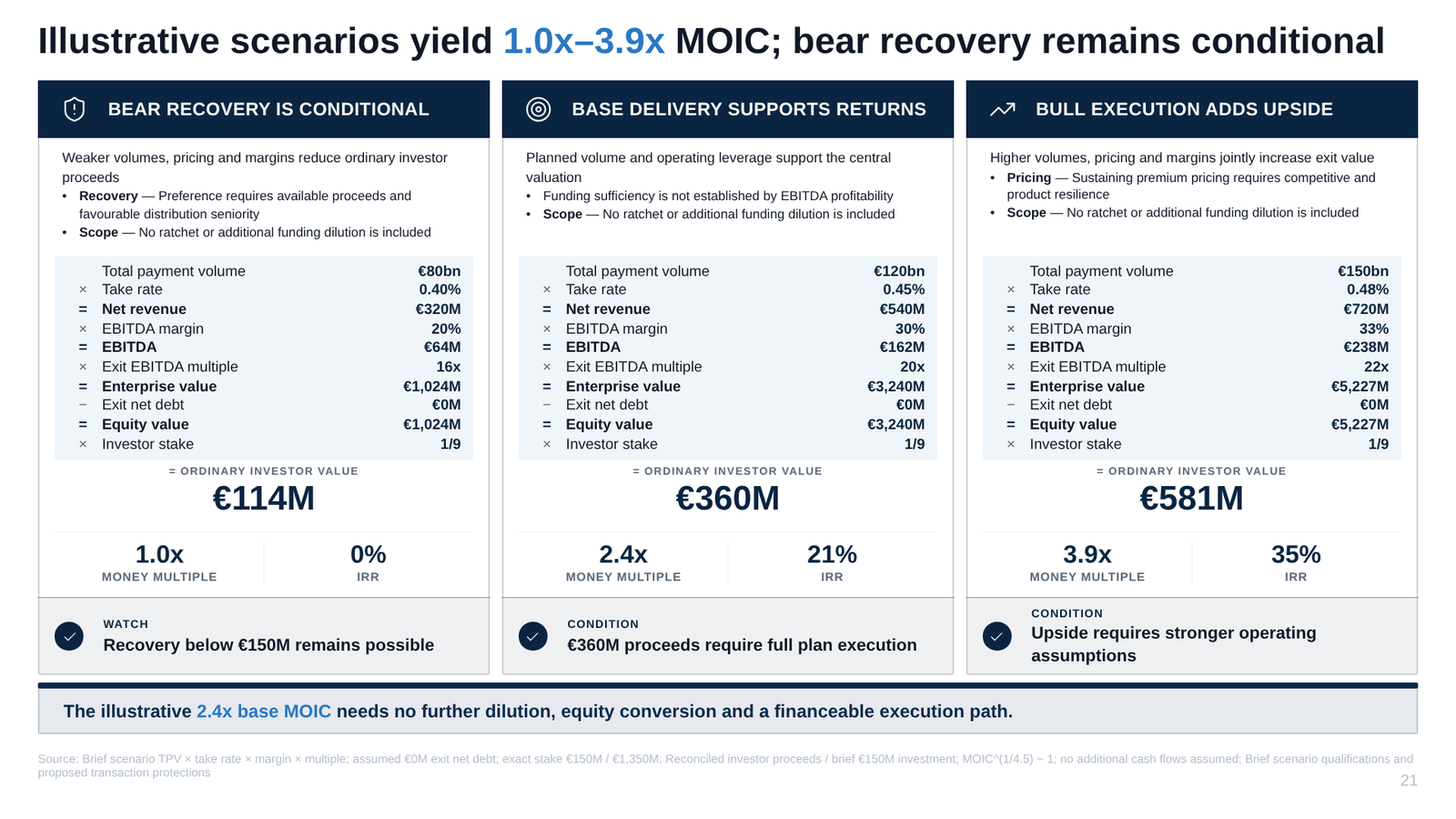
When Copilot in PowerPoint may be enough
- A quick internal draft from a prompt or one Word document.
- Your organisation already pays for Copilot and the deck will not face a board.
Choose Whyston if
- The deck comes from a data room, a financial model, research or interview notes.
- A partner, a board or an investment committee will ask where each number came from.
- You need the storyline and the action titles written, not only the slides.
- The team will keep working in PowerPoint after the first draft.
See all 25 tools compared: the best AI tools for consulting decks.